Article Overview
This article will cover how to send and receive chat messages in the SalesRabbit (iOS) mobile app and the SalesRabbit (Android) mobile app. This article also covers how to manage and view published News posted by the Owner or Admins within the account.
Part 1: Messages Permission
This part will quickly show how to edit the 3 permissions associated to News and Messages for an existing role. User's whose role does not have these permission enabled will not be able to perform the actions demonstrated in Part 2 and 3 of this article.
Note: your role must have admin or owner permissions enabled in order to edit role permissions.
- From the SalesRabbit Web App, navigate to "Settings" -> select "Roles & Permissions".
- Next, select the "Role" to edit this permission for -> enable the appropriate permissions for that role.
- Manage News: ability to manage News settings and delete News messages sent by any user.
- Send News: ability to send News messages to users within the set level.
- Initiate Chats: ability to initiate a chat/message to individuals within the set level.
- Users assigned to that role will then be able to send news/messages to other users within the set level (department, office, team...).
Sending Messages (iOS)
This part will demonstrate how to send a message from the SalesRabbit mobile app (iOS).
- After logging into the mobile app, navigate to "Messages".
- From the "Chat" section, users will be able to view a log of recently sent messages to individuals and groups on the left side.
- The pencil & paper "Draft" icon allows users to create a new message.
- Next, choose to send a message to an individual user, or create a new group by selecting multiple users.
- Note: the "Group" toggle at the top allows users to send a message to all users in a specific Office or Team in your organization, depending on your Org Chart.
- To send a message to an existing chat/group, simply select on the channel and "Write a message". Each message sent will be date and time stamped in the body of the message.
- Note: selecting the "+" icon in the messaging text box allows users to upload a photo, file, or short video to send in a message.
- Selecting "Settings" in the upper right corner of a message allows users to see the member(s) of a selected chat and add or remove users to the chat as needed.
- Note: to remove a user from an existing group, slide the users name to the left -> click "Delete".
Sending Messages (Android)
This part will explain how to access Messages from the Android SalesRabbit mobile app.
- From the Home screen, select the three lines menu icon in the upper left corner -> then click "Messages".
- Once in the "Messages" tab, users can toggle between "Chat" and "News" at the top of the screen.
- Chat allows you to draft a message and view past messages.
- To draft a message, select the "+" icon in the bottom right corner.
- Select the user(s) you'd like to message -> select "Chat".
- Then, draft your messages and hit "Send" in the bottom right corner.
- Previously sent messages will be visible under the main "Messages" page under "Chat".
Part 2: Drafting News
This part demonstrates how to create and manage News Articles from the SalesRabbit Web App. Published News Articles can be viewed by mobile app users.
News allows the ability to disperse information quickly to individuals, entire roles, groups, or your entire organization. They are informative based rather than conversation based.
Tip: users looking to create and manage news must have the "Manage News" and "Send News" permissions enabled for their assigned role.
- Select "Compose News" in the upper right corner of the News page.
-
Composing a piece of News functions similarly to sending an email.
-
Select who to send a piece of News to in the "To" box.
- Users can be selected in alphabetical order, users in a specific org assignment, or by users assigned to a specific role.
- Add a subject for the piece of News.
- Fill in the body of the message with your News or Announcement.
-
Select who to send a piece of News to in the "To" box.
- Once you're finished drafting your piece of News, hit "Send" in the bottom right hand corner.
-
That piece of News is now visible to users on the Web App and in the Mobile App.
- Note: Images and videos can be embedded into the message by entering a URL or a desired image or video. They cannot, however, be directly attached to the article.
- In the Web App, sent pieces of News will be visible from "Messages" -> "News".
- Here, users are able to view sent new and are able to view the subject line, date, and tags. To delete the message prior to it automatically expiring, you may click the trash can to the far right.
Accessing News (iOS)
This part will demonstrate how to access News from the SalesRabbit (iOS) mobile app. Admins have the ability to send/manage News or announcements to their users. These announcements can be viewed in the mobile app from the News tab in Messages.
- At the top of the screen, there is a toggle between "Chats" and "News". To view company announcements sent by admins/owners, click on "News".
- In "News" you can click on any messages to read them.
Accessing News (Android)
This part will demonstrate how to access News from the SalesRabbit (Android) mobile app. Admins have the ability to send/manage News or announcements to their users. These announcements can be viewed in the mobile app from the News tab in Messages.
- The "News" tab allows users to view any published pieces of News on the mobile device.
Pro Tips
- You can send pictures or files, by clicking on the + icon on the left side of your chat text box.
- After you have your first group created you can build more groups, from existing groups, by utilizing the Group tab after creating a new message. From there select which groups you want to include in this new group message.
- It is possible to edit the name of the group, as well as delete the group entirely.
- The maximum number of users in a Group Chat is 100.
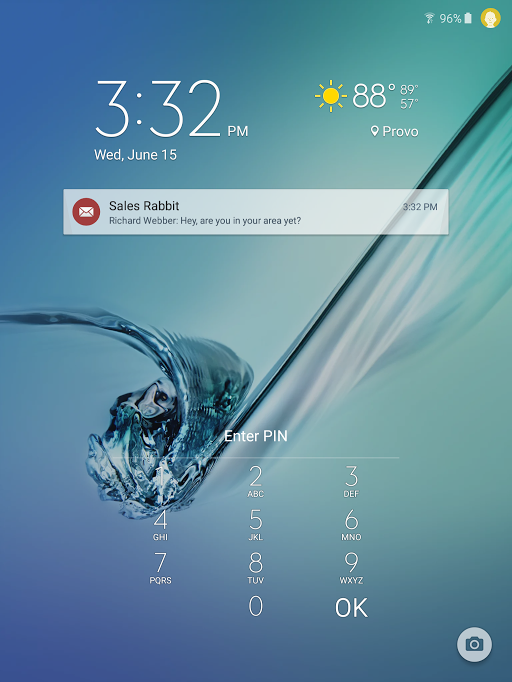
- If your device is locked when you receive a chat message it will appear just like a text message.
- You can swipe on that chat message to be taken directly to your conversation.
Related to