Article Overview
The sketch board is a great resource for adding visualization to your sales. This article will visit how to access and utilize the sketch board on the SalesRabbit iOS & Android mobile app.
Access the Sketch Board (iOS)
This part will cover how to access the sketch board from the SalesRabbit iOS mobile app.
- From the SalesRabbit iOS mobile app, navigate to "Tools" -> select "Sketch Board".
Unleash Your Inner Artist (iOS)
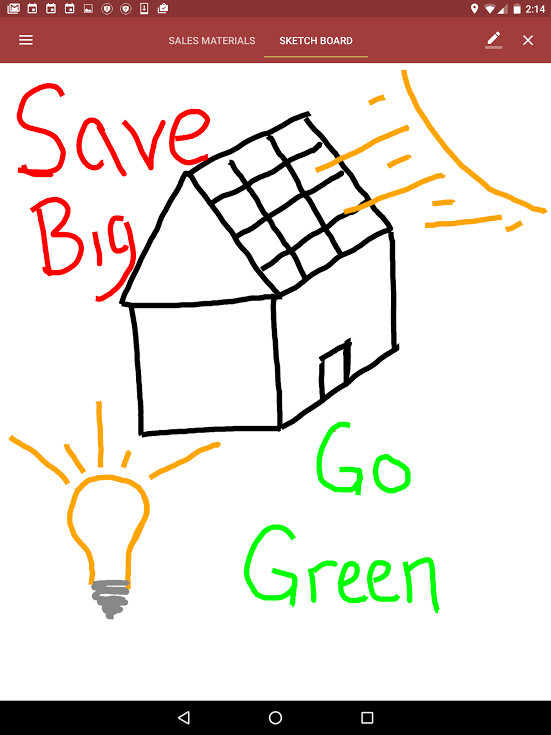
Once in the sketch board, you should be welcomed to a blank canvass. This part will preview the artist tools available to users.
- From the Sketch Board, users are able to:
- Select an Artist Tool: use the pallet icon in the upper right corner to select a color,, pencil width, and an eraser.
- Select the "Clear" button to clear a page.
- Note: the sketch board does not save. If a user writes/draws something for later reference, we recommend taking a screenshot.
Accessing the Sketch Board (Android)
- To get to the Sketch Board in the app click on the icon with three lines in the upper left-hand corner.
- Then click on "Tools" -> "Sketch Board"
Unleash Your Inner Artist (Android)
You should be welcomed to a blank canvass, let's pick our tools and get going!
- Select Your Artist Tool - The sketch board settings are found in the upper right-hand corner as a "pencil" icon. You can select between 8 different colors, 3 widths, and an eraser.
- Clear All-You can clear the page by clicking on "X" in the upper right-hand corner.